Overview
Introduction
Pygame-YaGUI is a tool to help developers using Pygame as a plataform for creating Graphical Physics simulations. It can be used to control several aspects of a simulation by the means of graphical controls like icons, buttons and others input widgets. Also, output widgets can be used to display information either numerically or in the form of charts.
Another feature of the package is the ability to easily control the flow of time in the simulation by starting, pausing, resuming and resetting the simulation clock.
A simple example
The image below shows an example of Pygame-YaGUI in action. The program is a 2D simulation of a disc (blue circle) confined in a region of space (blue rectangle) obeying simple cinematics rules with a downwards gravity, elastic collision with the confinement walls and no friction. The red arrow represens the disc velocity and the green arrow represents the disc acceleration.
Pygame-YaGUI is responsible for providing the small windows with its widgets, the controls at the top right corner and the status bar at the bottom. Nothing related to the drawing of the disc, confinement and arrows is supported by Pygame-YaGUI (yet!) and it is implemented by the rest of the simulation.

The power of Pygame-YaGUI comes from the ability to alter any simulation parameter during runtime (or while the simulation is in idle mode) without having to cancel the simulation and edit the code.
For example, one can use the slider in the Body Parameters Toolbox to have the radius of the disc changed or the dimensions and position of the confinement altered by entering the numbers directly on the fields at the Box Settings Toolbox. This are what we call input widgets.
In addition to control the simulation parameters, we can use output widgets to display information. One example is at the Energy Toolbox where it is located three charts showing the values for different kinds of energy calculated and updated in real time.
The controls at the top right corner can be used to pause/resume (first icon) or restart (second icon) the simulation. The third icon (hamburger style icon) will open a menu of options to handle the display of the toolboxes.
At the bottom one can see the status bar with information about the IPS (Iterations/s) and FPS (Frames/s) at the left and the simulation time in seconds at the right.
How it works
Your program will be divided in two parts: Your Simulation and the Interface. Consider the flowchart below.
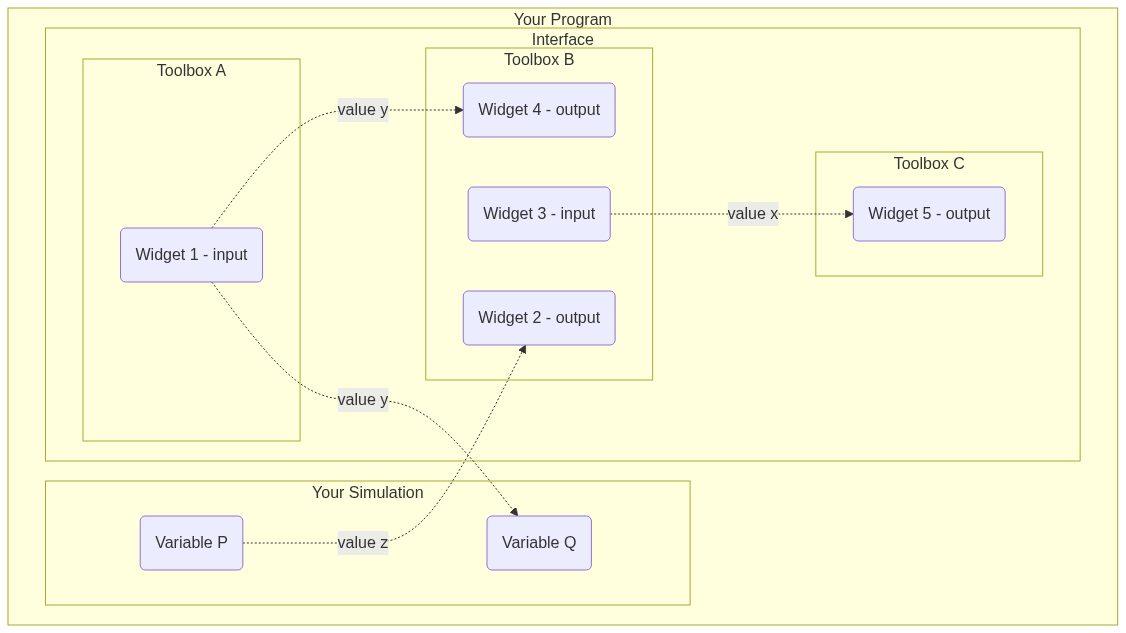
The Simulation might have many variables that are either parameters (fixed or not) and calculated values. Here we represent only two of those variables by Variable P and Variable Q.
The Interface can provide Toolboxes which behave like small floating windows that can be populated with Widgets.
Each Widget can be either of type input or output such that the input ones can have their values changed by the user during runtime both by graphical interaction or programatically. In other hand, output Widgets can only have their value altered programatically.
The value of any input Widget can be used to set any variable of the Simulation or any value of a output Widget. Also, any variable of the Simulation can set the value of any Widget (input or output)
The Interface will also be responsible for initialize several aspects of Pygame, keep track and control the flow of the Simulation time.